
Viewing Modes
Album3D offers three viewing modes for experiencing your photo collections.
Manual Mode
Manual mode is the default way to explore your project:
- You move the camera yourself using the controls described in Navigation & Controls.
- You jump between slides only when you use the slide navigation keys, buttons, or click/tap on slides.
- No automatic timing or camera paths are running in the background.
To use manual mode:
- Make sure no slideshow or demo is currently playing (stop them with the Slide Show or Demo controls).
- Use the controls described in Navigation & Controls or click/tap on slides.
While in manual mode, all navigation shortcuts (camera and slide navigation) are available. During slideshows or demos, some camera controls can be limited while the slideshow or demo is driving the camera automatically.
Slideshow Mode
A slideshow automatically advances through the slides in the current album or slide set.
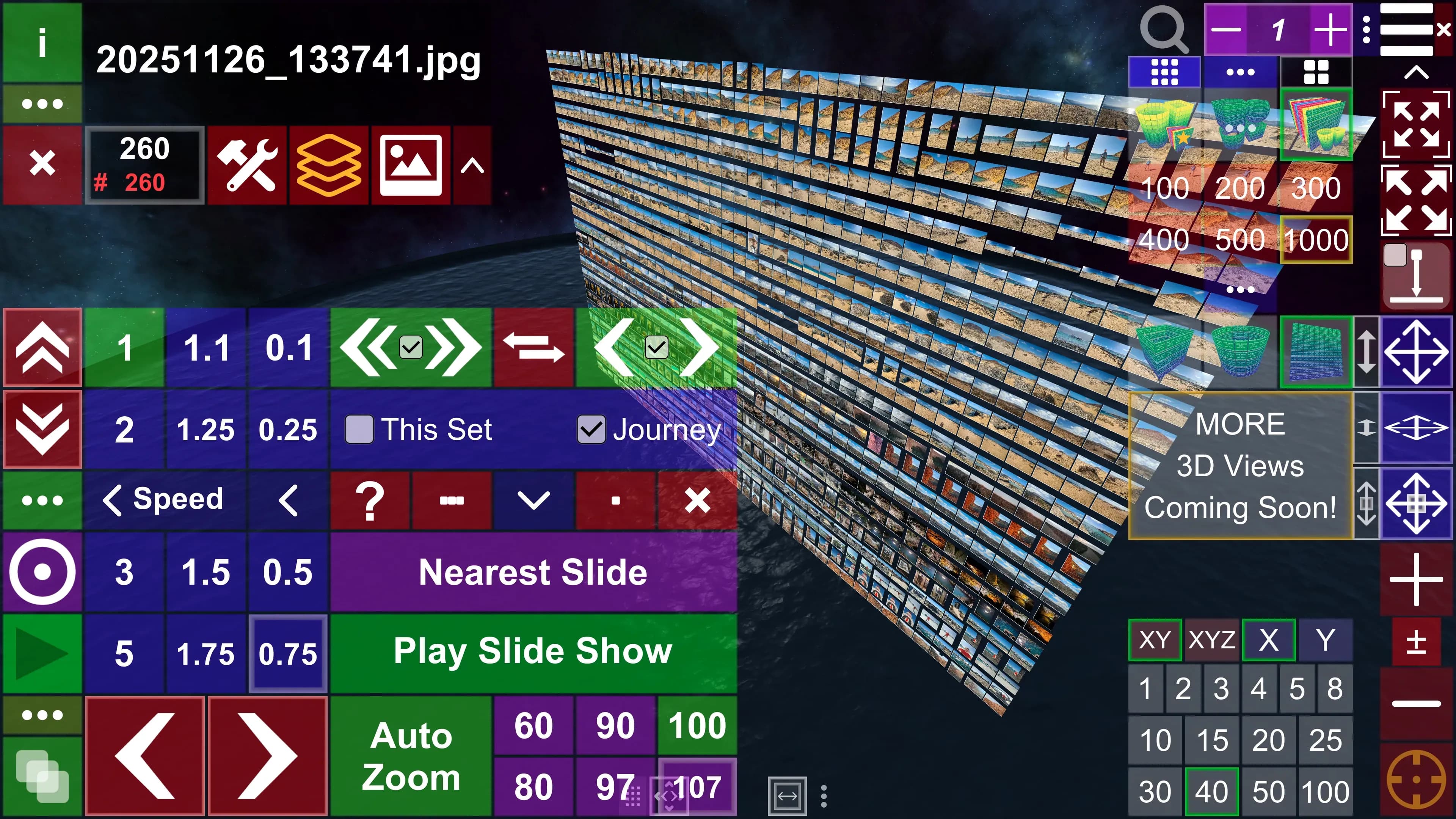
Starting and stopping a slideshow
- Use the Slide Show controls in the viewer UI (in the bottom-left corner).
- Click Play to start auto-advancing slides.
- Use Pause to temporarily stop auto-advance, or Stop to return to fully manual navigation.
While a slideshow is running:
- You can still use the slide navigation keys from Navigation & Controls to move forward or backward in steps.
- Camera navigation is limited while the slideshow or a demo is actively driving the camera.
Slideshow settings
In the Slide Show menu you can configure:
- Use range toggle and From / To fields – limit the slideshow to a specific range of slides. It applies also in manual mode.
- This Set toggle - controls whether the slideshow loops only within the current slide set or across all sets (for example, whether it moves to the next set when you reach the last slide of the current set). This also applies in manual mode.
- Journey toggle - controls whether the camera keeps its orientation relative to the next slide it moves to. The camera's forward direction is always horizontal (parallel to the ground).
- Skip empty slides / Skip duplicates – options to ignore slides with no visible content or duplicates. Some views can intentionally contain duplicate slides.
- Speed toggles - control the speed of the slideshow; the framed toggle lets you also set a custom speed.
💡 Tip: For more information on using slide show controls, see Navigation & Controls, especially Slide show controls and Slide navigation.
Demo Flythrough
Demo flythroughs move the camera along a pre-configured path, showcasing key slides or viewpoints, or just the view layout.
Playing a demo
- Use the Demo controls in the main menu to play, pause, or stop the demo.
- When you click Play, the camera automatically moves through the scene based on the demo configuration.
- Use Pause to temporarily stop, or Stop Demo to exit the demo and return to manual navigation.
While a demo is playing, normal camera controls are suppressed so they do not fight with the automated path.
Next Steps
- Navigation & Controls - Learn about all supported navigation controls, gestures, and camera transforms.
- Albums & Slides - Set up your slides before presenting.
- Settings & Customization - Adjust performance and quality settings for viewing.