
Edit Mode & Tools
Album3D's Edit mode lets you change how your project is structured in the 3D view: you can reposition slides, adjust their order, and edit descriptions. Use it when you want to author a project rather than just view it. Album-level tasks such as creating, duplicating, or reordering albums live in the Album menu and are available whether or not Edit mode is turned on.
Many of the tools described here are also referenced from Albums & Slides and related pages. For an overview of where these tools live in the interface, see Menus & Toolbars.
Entering and Leaving Edit Mode
To start editing:
- Open your project or package.
- In the main menu, click Edit.
- The Edit toolbar and editing overlays become active.
To leave Edit mode, either close the Edit toolbar (clicking the x button) or by clicking Edit Off in the main menu.
If Edit mode or some Edit tools appear unavailable, check that:
- The project is not frozen (see Project Management and Project Maintenance).
Selecting Slides in 3D
In Edit mode, you can interact directly with slides in the 3D view:
- Click a slide to select it.
- The selected slide is highlighted and its information shows in the slide info panel.
- You can select multiple slides and edit or move them together.
Use the camera controls from Navigation & Controls to position the view while you work.
Repositioning Slides in 3D
With one or more slides selected, you can change their placement in the scene:
- Drag or use the 3D move tools (transformation gizmos when available) to reposition slides.
- Use camera movement to inspect the layout from different angles.
These changes affect how the album looks in slideshows, demos, and manual viewing.
Most basic repositioning actions support Undo and Redo.
Slide Positioning Controls in the Edit Toolbar
The Edit toolbar exposes controls for changing slide positions within the album sequence:
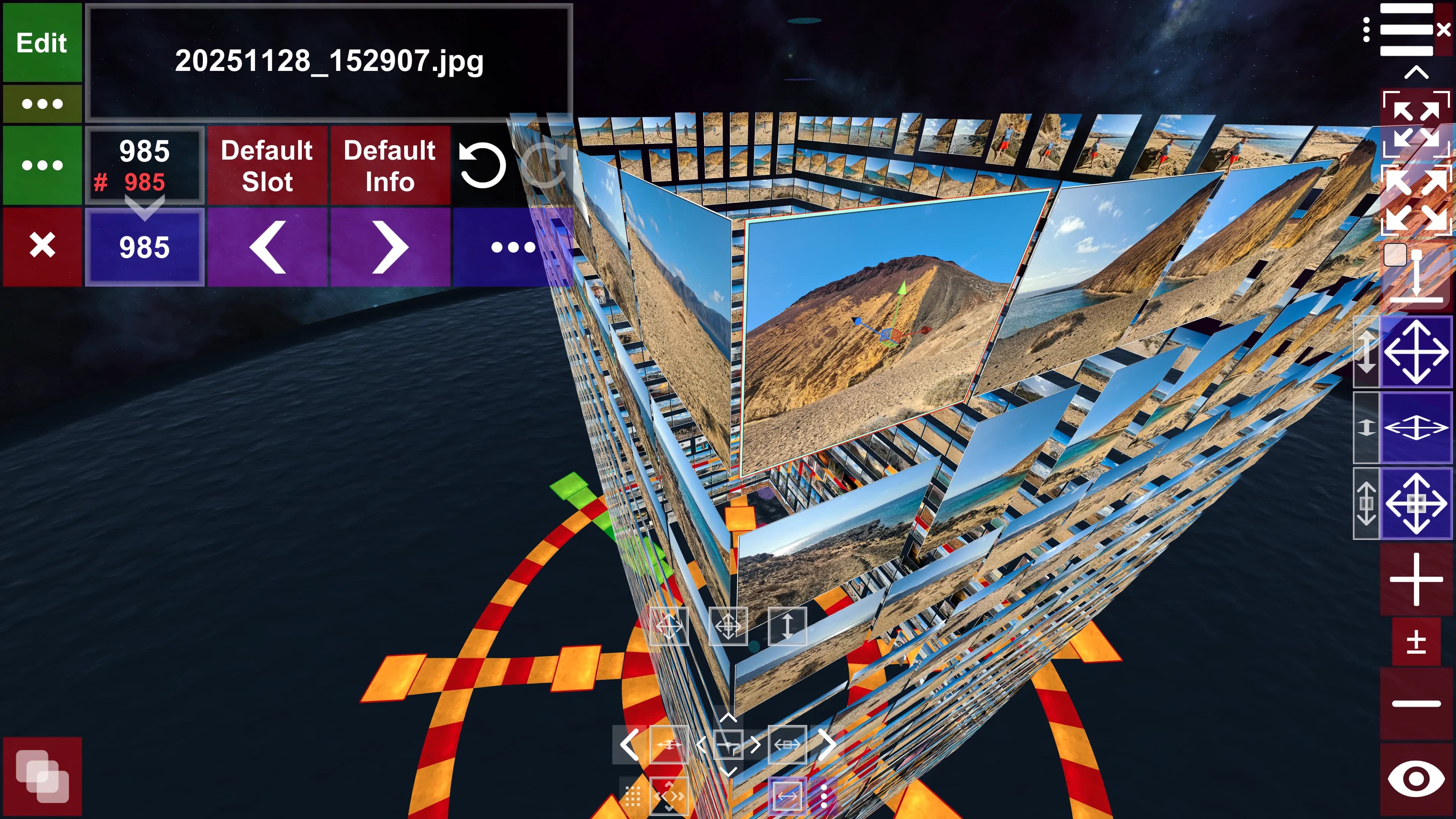
</>buttons – move the selected slide to the previous or next slide position.- Position input box – type a slide number to move the selected slide directly to that position.
- Default Slot – reset the selected slide's slot to its default position for the current view/layout.
- Restore Default Arrangement – restore the default arrangement of the selected slides in the current view. Available under "ID" in the Edit toolbar.
For more details on how positions and image IDs work, see Albums & Slides.
Editing Slide Descriptions & Metadata
Each slide can carry a description and related info.
To edit descriptions:
- Enter Edit mode and select a slide or slides.
- Ensure the Description field is visible.
- Edit the Description field.
To edit metadata:
- Enter Edit mode and select a slide or slides.
- In Edit mode, click "..." in the Edit toolbar to open Slide Metadata, ... dialog.
- Edit Description, Group name or Tags and click Apply.
Useful tools:
- Default Info – reset the selected slide's description/info to the default text (for example, based on the source file name or import settings).
- Restore Default Descriptions – restore default descriptions for selected slides. Available under "ID" in the Edit toolbar.
See also Slide descriptions.
Rearranging Slide/Photo IDs and Range Tools
Internally, slides refer to photos using slide/photo IDs. You can optimize these mappings without changing how the album looks.
- In Edit mode, click "ID" in the Edit toolbar to open Rearrange Slide # IDs dialog.
- In the dialog, set the range you want to process (for example using Max Slide Range, To End, or similar helper buttons).
- Click Rearrange IDs to compact and optimize ID assignments while preserving visible order.
This operation clears the project's Undo/Redo history. Album3D will ask you to confirm before running it. See Repositioning slide/photo IDs for more detail.
The same dialog also exposes:
- Copy... – opens COPY SLIDES TO ALBUM, used to copy slides to another album.
- Delete... – opens DELETE SLIDES FROM ALBUM, used to remove slides from the current album.
For step-by-step instructions, see Copying slides between albums and Deleting slides. The same Copy and Delete operations are also available from the Album menu and work whether or not Edit mode is active.
Album Menu: Album Management Tools (No Edit Mode Required)
Album-level tools affect whole albums instead of individual slides. They live in the Album menu and work both in normal viewing and Edit mode—you don't need to turn Edit mode on just to manage albums:
- New | Dup... Album – create a new empty album or duplicate the current album. When you choose Dup..., a popup asks whether to duplicate the album or start from a new empty album.
- Delete Album – remove the current album. This deletes its slides but not the underlying source image files.
- Rename Album – change the album name shown in the UI.
- Move Album Up / Move Album Down – reorder albums in the project.
- Delete from Album – remove selected slides from the current album only (the slides remain available in other albums that use the same images).
- Copy to Album – copy selected slides into another album.
- Copy to Folder (some builds) – copy the source image files for the selected slides to a filesystem folder without changing the project itself. It is grouped here next to Copy to Album for convenience.
For album-management workflows, see Albums & Slides.
Undo, Redo, and Safety Tips
- Most everyday editing actions in Edit mode (such as repositioning slides or changing descriptions) support Undo and Redo.
- Heavy operations such as Rearrange Slide # IDs clear the undo history; confirm dialogs will warn you before these run.
- Save your project regularly and consider keeping backup copies before large structural changes.