
Media Sets & Views
Organize photos into media sets and choose different viewing layouts.
Media sets (also called image sets in some parts of the UI and documentation) group the same underlying photos into different configurations. Today, media sets contain photos only, but the same concept can be used for additional media types (such as videos or document previews) in the future.
Understanding Media Sets
- Multiple sets per album – You can have multiple media sets per album. The number of photos in each set is determined by the selected image count for the current view type.
- Set-based organization – Within an album, each media set uses the same layout; only the photos assigned to that set change.
- Easy switching – Toggle between media sets instantly.
💡 Tip: Within a single media set (image set), each underlying photo has an ID (1, 2, 3, … up to that set's image count). The slide position in a set or view is separate from the image ID: multiple positions can show the same image ID when a view reuses a slide. You can also have visually identical photos with different IDs if you import them separately.
Changing Media Sets
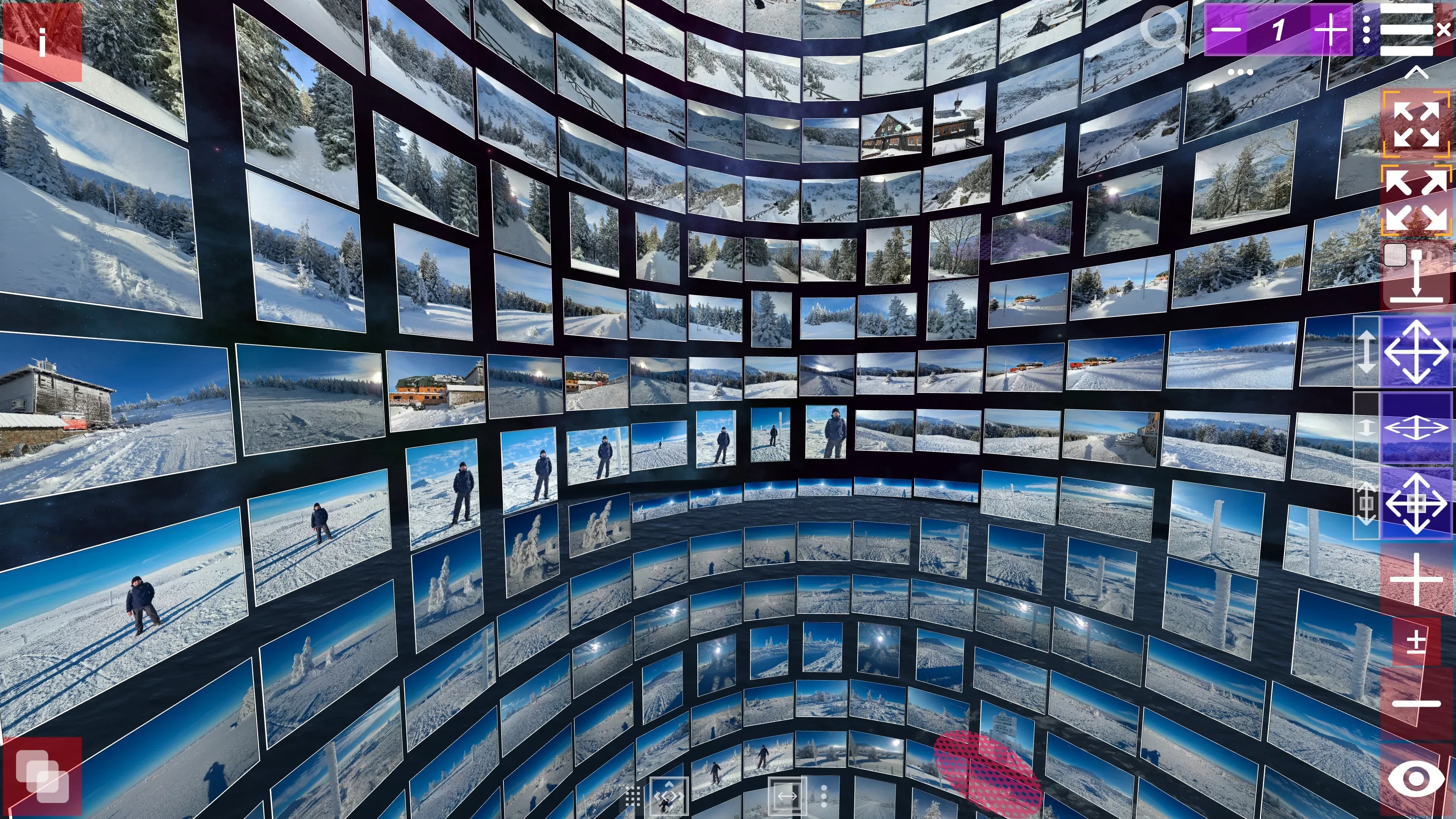
Use the set selector (+/− buttons in the top‑right corner) to switch between media sets.
View Types
Album3D offers several view types. For each view type you choose an image count, then a specific view style.
Today we have the following view types:
- Star views – Selected 3D views.
- Simple views – Photos arranged in simple formations, such as a cylinder or grid.
- Complex views – Coming soon!
After selecting the image count, you can choose view styles such as:
- Grid view
- Cylinder view
- Square column view
Many view styles also expose extra options, for example:
- Non‑spiral layouts – Photos are arranged without a helical twist, for example in straight cylinders or simple cube‑like formations.
- Spiral layouts – Photos follow a spiral/helical path, smoothing vertical transitions between rings in cylinder or cube‑like layouts.
- Number of photos per axis/plane – For simplicity, X is a horizontal plane, Y is a vertical plane, and Z is a depth plane.
As support for other media types is added, those media items will appear in views using the same mechanisms as photos.
Switch views using the view selector located on the right side of the viewer.