
Navigation & Controls
Use these controls to move around and browse your photos in Album3D.
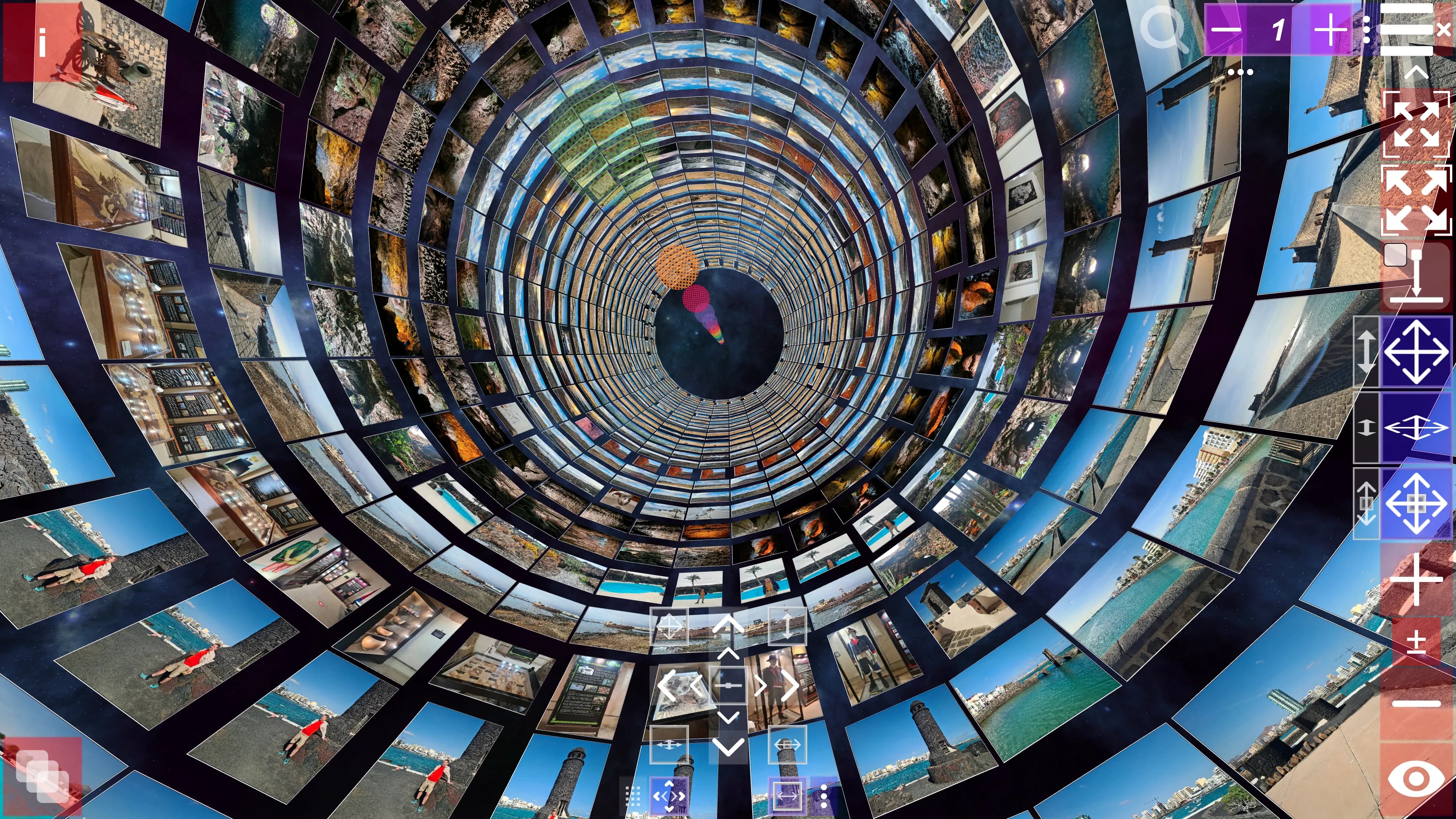
Album3D has two main navigation styles:
- Slide navigation – jumping between predefined slides in discrete steps.
- Camera (manual) navigation – freely moving and looking around the 3D scene.
When controls are active
Most camera controls respond when:
- no full-screen menu or dialog is open
- no demo is currently playing
If the camera does not respond as expected, check whether a menu, dialog, or Edit mode is active.
Slide navigation
When slide-style navigation is active (either slide show mode is on or the current camera mode prefers slide controls), the following keys move between slides:
-
Next / previous step
→Right Arrow- next slide←Left Arrow- previous slide
-
Larger jumps
↑Up Arrow- jump forward by a big step↓Down Arrow- jump backward by a big stepPage Up- jump forward by a page stepPage Down- jump backward by a page step
-
Even larger jumps
,- jump backward by an alternate (usually large) step.- jump forward by an alternate step
On macOS, holding Cmd while pressing ↑ or ↓ uses the page step instead of the big step.
The exact sizes of the big, page and alternate steps are configured per view type.
Slide show controls
Slide Show controls (in the bottom-left corner) let you adjust how the slideshow behaves, including its speed and navigation.
💡 Tip: When Slide Show mode is playing, it can use a different set of settings than manual mode (when Slide Show mode is off).
- Click or drag the arrow buttons to move between slides or demo points; when you drag them, the camera moves smoothly between slides.
- "This Set" toggle controls whether the slideshow loops only within the current image set or across all sets (for example, whether it moves to the next set when you reach the last slide of the current set). This also applies in manual mode.
- "Journey" toggle controls whether the camera keeps its orientation relative to the next slide it moves to. The camera's forward direction is always horizontal (parallel to the ground).
- "Skip Empty" and "Skip Duplicates" toggles control whether the slideshow skips slides with no visible content or duplicates. Some views intentionally contain duplicate slides.
- "Use Range" toggle and From / To fields limit the slideshow to a specific range of slides. It applies also in manual mode.
- "Auto Zoom" toggle controls whether the camera automatically zooms to fit the current slide. The buttons to the right of the toggle adjust the zoom level. Auto Zoom also affects manual camera navigation when you move between slides.
- "Speed" toggle controls the speed of the slideshow; the framed option lets you set a custom speed.
- "Play" starts playback, "Pause" pauses it (while staying in Slide Show mode), and "Stop" ends the slideshow and returns to manual navigation.
- When the slideshow is playing or paused, you are in Slide Show mode, indicated by the "SLIDE SHOW MODE" label at the top of the controls. In this mode you can still use the slide navigation keys to move forward or backward in steps.
- You can hide or show the arrow buttons, or swap their positions, using their dedicated toggles.
- You can hide or show different parts of the Slide Show controls by using the section toggles (three dots or
<,>).
Camera navigation (keyboard)
When the demo is not playing, you can move using the keyboard:
- Forward / backward - use the
WandSkeys. - Left / right - use the
AandDkeys.
Camera navigation (mouse)
The exact behavior of mouse gestures depends on the active navigation mode, but in general:
-
Look around
- Dragging with the primary mouse button rotates the view (yaw and pitch) when that button is not being used for sliding.
- In modes where sliding is bound to the primary button, rotation is done by dragging with the secondary mouse button instead.
-
Zoom
- When zoom mode is enabled (
±toggle is ON), scrolling the mouse wheel zooms in and out (changes the camera field of view). - When zoom mode is not enabled (
±toggle is OFF), the scroll wheel moves the camera forward/backward instead of zooming in most modes.
- When zoom mode is enabled (
-
Move mode toggles
You can use the Move mode toggles in the right toolbar to change the behavior of navigation controls and the default plane of movement:
-
XY plane (you can also press
Cor click the middle mouse button to switch to this mode) -
XZ plane
-
Surface or slide plane where Z is the forward/backward axis.
-
Pressing
Cswitches to XY plane navigation mode; releasing the key returns to the original mode. -
Clicking the middle mouse button behaves like the
Ckey.
-
Touch and touchpad gestures
On touch devices and touchpads, the following gestures are supported by the viewer:
- Pinch with two fingers - zoom in and out; this works only in zoom mode (when
±toggle is ON). - Drag with one finger - rotate the view (look around) in rotation-enabled modes.
- Drag with two or more fingers - move or slide the camera in move-enabled modes (when
±toggle is OFF). - Three-finger gestures - in some modes, used for rotation (yaw/pitch) instead of movement.
The exact behavior of multi-finger gestures depends on the current camera mode.
Draggable or clickable move controls
In addition to the above controls, you can also use the draggable or clickable move controls in the viewer to move and rotate the camera. Some of them enable you to also move smoothly between slides without actually moving toward them, which gives an option to, for example, move around slide layouts such as cylinders.
Some controls are multipurpose:
- when clicked they can either toggle to a different navigation mode or, for example, rotate by some degree
- when dragged they can be used to move or rotate the camera, or move smoothly between slides
Draggable controls usually have a frame around them to indicate that they are draggable.
At the bottom of the screen, you can find the Transform controls that enable you to rotate and move the camera:
- The bottom-left double-purpose control lets you switch between different control arrangements, and when dragged it moves smoothly between slides. The bottom-leftmost control lets you drag all Transform controls around the screen.
- The bottom-right three-dot toggle lets you show or hide most Transform controls. Another bottom-right control hides some Transform controls too.
Related topics
- Viewing Modes - manual viewing, slide shows, and demo flythroughs.
- Albums & Slides - organizing and positioning photos.
- Settings & Customization - enabling advanced navigation and camera options.