
Getting Started
This guide will help you get up and running with Album3D quickly.
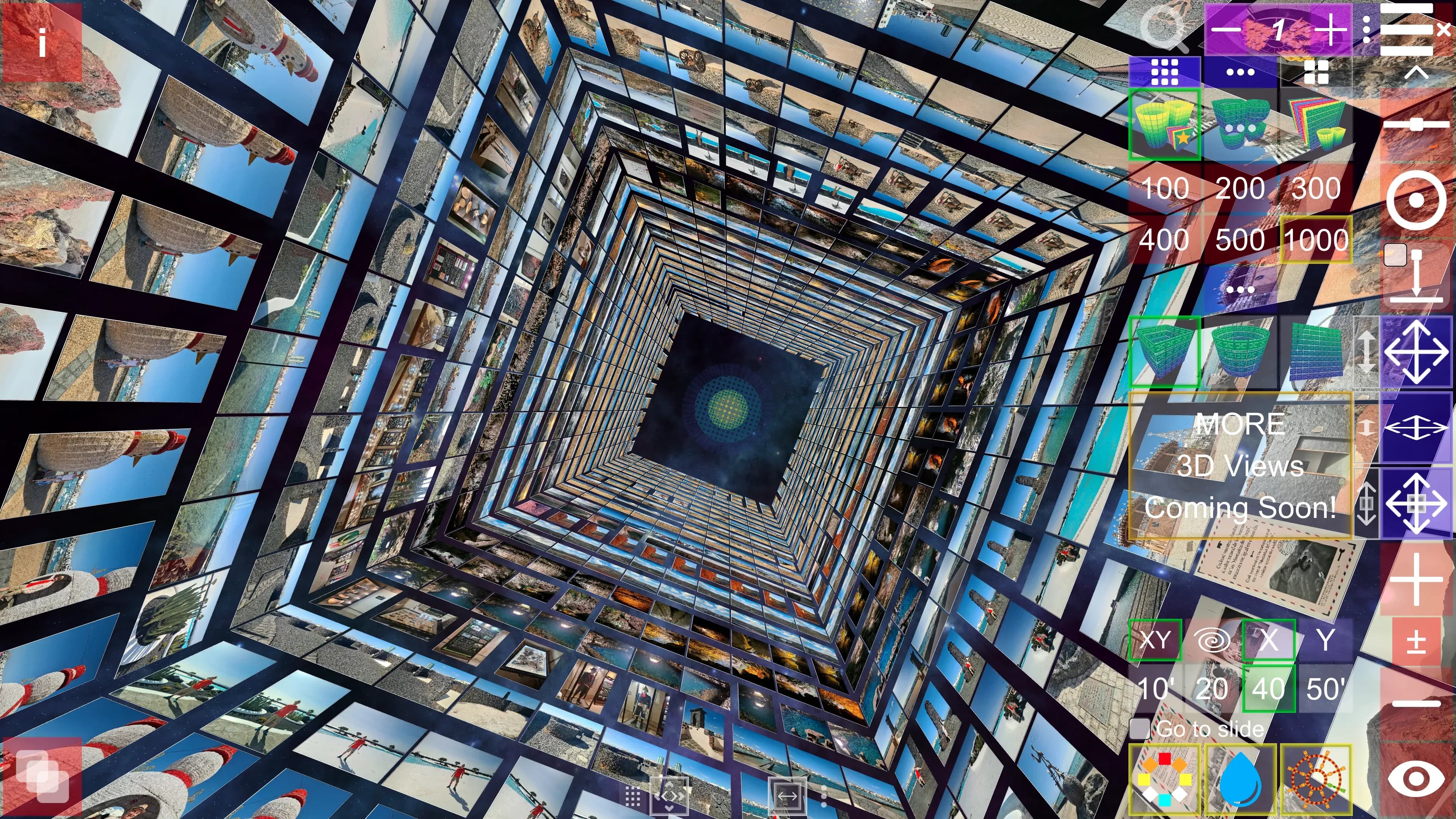
Installation
Album3D is distributed as a desktop application for Windows and macOS. After obtaining it from your preferred distribution source, install it using that source’s usual procedure, then launch Album3D.
First Launch
In the main Album3D interface, you can:
- Create a new project - Start fresh with a new Album3D project (
.album3d-x). - Open an existing project - Load a previously saved Album3D project (
.album3d-x). - Open a package - Open an existing Album3D package (
.album3d), a single-file version of a project that you can open directly, or extract to a regular project (.album3d-x) for editing and more efficient loading.
Quick Start Guide
Step 1: Create Your First Project
- Click "New" in the main menu.
- Choose where to save your new project file (
.album3d-x):- Edit the suggested location and click "Save".
- Or click "Save As" to select a different folder or filename.
Your new project will open with an empty 3D environment ready for your photos.
Step 2: Import Your First Photos
- Click Import Images... from the main menu, or click one of the import buttons in the CURRENT SLIDE OPERATIONS dialog (opened from the top-left toolbar by clicking the tools icon) to open the IMPORT IMAGES dialog.
- In the From Folder or From Selected Files tab, browse to select photos from your computer.
- Adjust import options if needed (for example, thumbnail resolution, crop and frame settings, and whether source files should be copied to the project).
- Click "Import..." or "Test Import" (imports at no cost but with a watermark, so you can test importing your own photos).
Album3D will process your photos and add them to the current album and image set, or to multiple image sets if you selected more photos than the current view can display.
Step 3: View Your Photos in 3D
Once imported, your photos appear as slides in the 3D environment:
- Use the navigation controls from Navigation & Controls to move between slides and look around.
- Click on a slide to select it and focus the camera.
- Use the Slide Show (bottom-left corner), Demo Flythrough (main menu), or Manual Mode to start an automatic slideshow or view slides manually (see Viewing Modes for details).
Step 4: Save Your Work
- Use the Save option in the main menu.
- Your project can be saved either as a single .album3d package, which bundles your photos and settings, or as a regular project consisting of a .album3d-x file plus one or more folders containing your media files (currently only source photos and .slide thumbnail files).
💡 Tip: The project is often saved automatically in the background, e.g., after importing photos, but it's still good practice to save manually after significant changes.
Basic Navigation
Album3D supports mouse, keyboard, and touch navigation. For a full list of controls, see:
Next Steps
Now that you've created your first project, explore these topics:
- Project Management - Learn about saving, loading, and packaging projects.
- Importing Images - Advanced import options and source files.
- Albums & Slides - Organize your photos into multiple albums.
- Edit Mode & Tools - Reposition slides, edit descriptions, and manage albums.
- Navigation & Controls - Master all keyboard shortcuts and controls.
Tips for Beginners
- Start small - Import a few photos first to get familiar with the interface.
- Experiment - Try different viewing modes and settings.
- Save often - Save your project regularly to avoid losing changes.
- Use keyboard shortcuts - They make navigation faster once you're comfortable with them.
Ready to dive deeper? Continue to the next section!